TL;DR
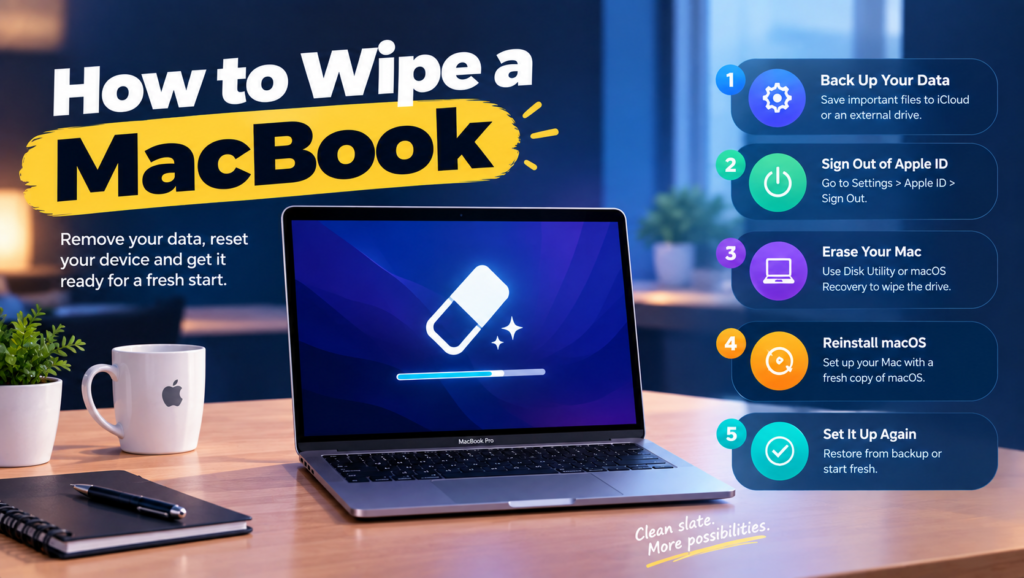
- Wiping a MacBook means erasing all data and settings so it boots to the setup screen with no trace of the last user and no Activation Lock tied to their Apple Account.
- If you’re wiping one personal Mac to sell, Erase All Content and Settings is all you need. You can stop after the first method below.
- For company Macs the job has four parts: keep what policy requires, erase, clear Activation Lock, and decide whether the Mac stays in Apple Business or gets released.
- There are three ways to do it: Erase All Content and Settings on the Mac, a remote erase from your MDM, or Recovery and Disk Utility on older Intel Macs.
- Pick the method by chip type and by where the Mac physically is.
- Done right, the next person opens the lid, sees the setup screen, and the Mac enrolls itself into your MDM.
A new hire starts Monday. Their laptop arrives Friday: a 2023 MacBook Air that belonged to someone who left in August. IT erases it from Recovery over the weekend, and on Monday morning the setup screen stops cold. Activation Lock. It wants an Apple Account password that belongs to a person who no longer works there.
This is the most common MacBook handoff failure, and it’s rarely about the erase itself. Other versions: a Mac released from Apple Business “to be safe” that won’t enroll itself anymore. A leased Mac returned still showing your Remote Management screen. An Intel Mac “wiped” by reinstalling macOS, which leaves every user file in place.
The real issue isn’t erasing the Mac. It’s cutting every tie to the last person while keeping the ties to your company you actually want. That’s what a proper MacBook wipe process is supposed to handle.
When You Don’t Need a Formal MacBook Wipe Process
When it’s one personal Mac. You’re selling it or handing it to family. Run Erase All Content and Settings, enter your passwords, done.
When friction shows up. A dozen Macs and no MDM. Someone wipes them by hand, which works until the day they forget to sign an ex-employee out of iCloud.
When it becomes a liability. The Macs held customer data and you’re in SOC 2 scope. Now you need a record per device showing it was erased, when and by whom. “I think Sam did it” won’t pass.
The edge case: the Mac is in an ex-employee’s home abroad. You can’t touch it. A remote erase through your MDM is the only way to sanitize it before it ships back, or if it never does.
What IT Admins Actually Need Before Wiping a Mac
“Which erase method does this Mac support?”
Apple silicon Macs and Intel Macs with the T2 chip (most models from 2018 to 2020) running macOS Monterey or later support Erase All Content and Settings. Older Intel Macs need Recovery and Disk Utility.
The method decides whether the erase takes minutes or an hour, and whether it clears Activation Lock for you.
“Will the next user hit Activation Lock?”
Only if the last user’s Apple Account is still attached. Erase All Content and Settings signs it out, and on a managed Mac your MDM or Apple Business can clear it.
It’s the usual reason reassigned Macs get stuck, so clear it before the Mac leaves your hands.
“Should this Mac stay in Apple Business?”
Yes, if it’s staying in the company. Release it only when it leaves your ownership: sold, donated, recycled or returned to a lessor.
Releasing is hard to undo: getting a Mac back in takes manual work with Apple Configurator.
“Do I need to keep any of the old user’s data?”
Check your retention policy and any legal holds before you erase.
Once the erase runs, the data is gone. There’s no undo.
“How do I prove it was erased?”
Your MDM’s command history shows the erase command and when the Mac acknowledged it. Log the serial number, date and who sent it.
Auditors sample single devices, and that log is your evidence.
The Three Ways to Wipe a MacBook
1. Erase All Content and Settings (on the Mac)
What it is: Apple’s built-in erase assistant for Apple silicon and T2 Macs on macOS Monterey or later. These Macs encrypt their storage by default, so the erase works by destroying the encryption keys. That’s why it finishes fast.
- Back up anything your retention policy requires.
- Open System Settings, click General, then Transfer or Reset, then Erase All Content and Settings.
- Enter an admin password, then the Apple Account password of whoever is signed in, so Activation Lock turns off.
- Confirm. The Mac restarts to the setup screen, and may ask to join Wi-Fi so it can activate.
When it’s right: The Mac is in your hands and someone knows both the admin password and the Apple Account password.
When it fails: Nobody knows the previous user’s Apple Account password. Then Activation Lock has to be cleared through your MDM or Apple Business instead.
2. Remote erase from your MDM
What it is: The Erase Device command sent from your device management tool (Jamf, Iru, Mosyle, Intune, or the device management built into Apple Business). On Apple silicon and T2 Macs running macOS 12 or later, it runs the same Erase All Content and Settings process remotely.
- Confirm the Mac is enrolled and has checked in recently.
- If Activation Lock is on, make sure your MDM holds a bypass code, or turn Activation Lock off for that device in Apple Business.
- Send Erase Device. Intel Macs may ask you to set a PIN when you send it, so record that PIN.
- Watch for the command to show as acknowledged. That entry is your proof.
When it’s right: Remote teams, a Mac in someone’s home, or an offboarding where the laptop hasn’t come back yet.
When it fails: The Mac is offline. The command waits until it connects to the internet, which might be never. So send it on the person’s last day, not a month later.
3. Recovery and Disk Utility (older Intel Macs)
What it is: The manual route for Intel Macs without a T2 chip (mostly pre-2018 models), or for any Mac where the first two methods won’t run.
- Sign out of iCloud first so the Mac isn’t left tied to the last user.
- Restart while holding Command-R to open macOS Recovery.
- Open Disk Utility, select Macintosh HD, and click Erase (choose Erase Volume Group if it’s offered).
- Quit Disk Utility and choose Reinstall macOS.
- When the setup screen appears, press Command-Q and shut down, leaving setup for the next user.
When it’s right: Older Intel Macs, or a Mac that won’t boot normally. On an Apple silicon Mac that won’t start up, hold the power button, open Options, and use Erase Mac from the Recovery Assistant menu instead.
When it fails: It’s slow, since the reinstall can take an hour or more. And erasing from Recovery doesn’t remove Activation Lock on Apple silicon or T2 Macs, which is exactly how the Monday-morning story above happens.
How to Choose: Five Questions Before You Hit Erase
Which chip is it? Open the Apple menu and choose About This Mac. “Chip: Apple M” means Apple silicon, so use method one or two. “Processor: Intel” means checking System Information for a T2 controller first.
Where is the Mac right now? On your desk, use method one. In a home three time zones away, use method two before anything else, then ship a return kit.
Who knows the Apple Account password? If the answer is nobody, sort out Activation Lock first. Erasing without doing that just moves the problem to the next user’s first morning.
Is the Mac staying in the company? If yes, leave it assigned in Apple Business so it enrolls itself on next setup. If no, erase it first, then release it.
What does your evidence need to look like? For most teams an MDM command log plus a line in the asset register is enough. If a contract or auditor wants a formal certificate, route the Mac through an ITAD provider.
Five Tools Worth Knowing for Wiping Company Macs
Apple Business (built-in device management)
Best for: Small all-Apple companies that don’t have an MDM yet.
Why companies choose it: Since Apple replaced Apple Business Manager with Apple Business in April 2026, basic device management comes free alongside the enrollment and Activation Lock controls admins already used.
Where it struggles: It covers the basics. Teams with complex policies, compliance reporting or Windows machines outgrow it.
Jamf Pro
Best for: Large Mac fleets that need deep control over every setting.
Why companies choose it: It’s the long-standing specialist in Apple management, with thorough support for new macOS features and a large admin community.
Where it struggles: Cost and complexity. A 40-person startup will pay for depth it won’t use.
Iru (formerly Kandji)
Best for: Mid-size, Apple-first companies that want heavy automation.
Why companies choose it: Prebuilt compliance templates and automation cut setup time. It rebranded as Iru in October 2025 and now covers Windows and Android too.
Where it struggles: Pricing is aimed at the mid-market, and during the rebrand some docs and screens still carry the old name.
Mosyle
Best for: Cost-conscious companies that only run Apple devices.
Why companies choose it: Apple-only focus at a price that tends to undercut the bigger names.
Where it struggles: If you also manage Windows laptops, you’ll need a second tool.
Microsoft Intune
Best for: Microsoft 365 companies with a mix of Windows and Mac.
Why companies choose it: It’s often already paid for, and one console covers both platforms.
Where it struggles: Mac features tend to arrive later than in Apple-first tools, and Mac admins often find it clunkier.
The Decision Table: Which Wipe Fits Which Mac
| Situation | Scale / Size | Setup | Primary Pain | Recommended Starting Point |
|---|---|---|---|---|
| Selling one personal Mac | 1 device | Home | Just want it clean | Erase All Content and Settings |
| Reassigning an office Mac to a new hire | Under 50 people | Office | Next user sees the old login | Erase All Content and Settings, keep it in Apple Business |
| Offboarding a remote employee | 50 - 500 people | Home-based | The Mac is 3,000 miles away | MDM Erase Device (Jamf, Iru or Mosyle), then a retrieval kit |
| Small all-Apple team with no MDM | Under 50 people | Mixed | No central control | Apple Business built-in device management |
| Microsoft 365 company with some Macs | 100+ people | Hybrid | Two platforms to manage | Microsoft Intune |
| Old Intel Mac without T2 | Any | Office | No quick erase option | Recovery and Disk Utility, then reinstall macOS |
| Mac leaving the company for good | Any | Any | Next owner hits Remote Management | Erase first, then release from Apple Business |
Most teams land in two or three of these rows at once. Start with your biggest failure and layer from there.
The Cost of Getting a Mac Wipe Wrong
The Activation Lock story costs more than it looks. A new hire loses their first day, and IT loses a few more chasing an ex-employee or digging up the original invoice for Apple.
The quieter mistakes last longer. A Mac released from Apple Business by accident won’t enroll itself, so someone rebuilds it by hand. A Mac sold with enrollment still attached lands on a buyer who can’t use it. And a Mac erased before anyone checked the legal hold list can turn a routine exit into a real problem.
So before your next erase, ask one question. Is your weak spot the erase itself, Activation Lock, or what happens to the Mac afterwards? Most teams fix the first and trip on the other two.
When You’re Ready to Move Beyond Wiping Macs by Hand
You’ve outgrown manual wipes when you’re offboarding more than one or two people a month, when laptops live in homes instead of an office, or when an auditor asks for erase evidence and all you have is someone’s memory.
At that stage, every Mac should be in Apple Business, enrolled in an MDM, and erased remotely on the employee’s last day, with retrieval handled as a separate, tracked step.
If that’s where you are, it’s worth looking at dedicated tools in this space. Our guides to remote device retrieval during offboarding and MDM solutions for remote teams cover the next steps.
Frequently Asked Questions
How long does it take to wipe a MacBook?
Erase All Content and Settings usually takes minutes, because it destroys encryption keys instead of overwriting the whole drive. The older Recovery method takes much longer, often an hour or more, since it includes reinstalling macOS.
Does wiping a MacBook remove Activation Lock?
Only if you use Erase All Content and Settings and enter the signed-in user’s Apple Account password. Erasing from Recovery or Disk Utility leaves Activation Lock in place on Apple silicon and T2 Macs.
How do I wipe a MacBook without the password?
Without the login password, you can still erase the Mac from macOS Recovery, but Activation Lock stays on. To clear it, you need the previous user’s Apple Account password, your MDM’s bypass code, or Apple’s Activation Lock support request, which asks for proof of purchase.
Does reinstalling macOS erase my data?
No. Reinstalling macOS on its own keeps your files and apps. You have to erase the disk first, or use Erase All Content and Settings, to actually remove data.
Can I wipe a MacBook remotely?
Yes. Company Macs can be erased with your MDM’s Erase Device command. For a personal Mac, you can erase it from Find My if it was turned on before the Mac went missing.
How do I wipe a MacBook that won’t turn on?
You can’t erase a Mac that won’t power up, and on Apple silicon Macs the storage is soldered to the board, so you can’t pull it out either. Send it to a certified ITAD or destruction provider and get a certificate for that serial number.
Erase the data, clear the lock, and keep the Mac yours until you decide otherwise.